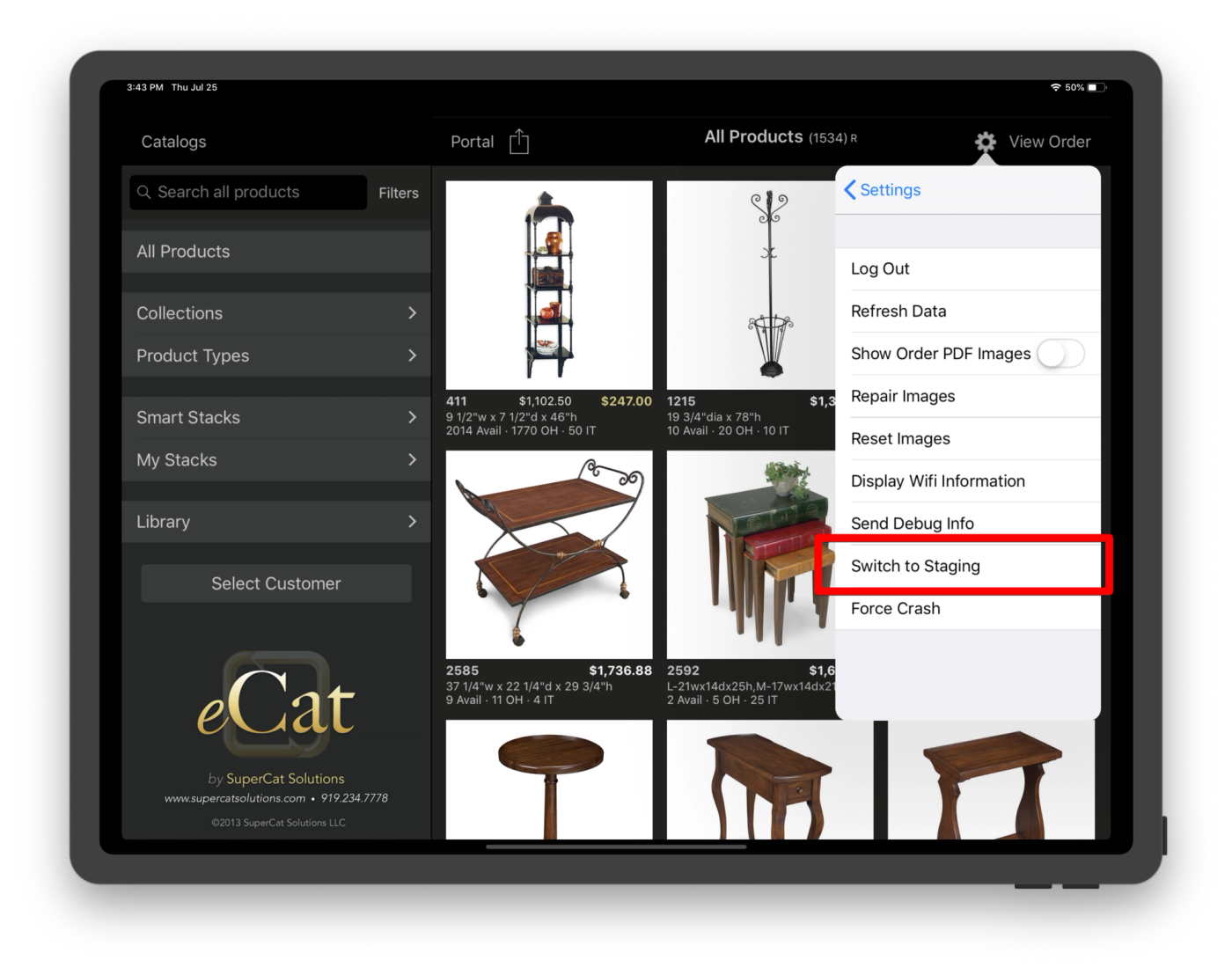
We maintain a staging environment that tracks our production environment fairly closely, and it can be a great place to try out new changes without bothering your users.
In order to use our staging environment, SuperCat must grant you access. If you don't have access already, please contact SuperCat support (support@supercatsolutions.com).
Admin Access
Once you have access, you may do many of the same things on our staging environment as you do in our production environment.
Log in here: staging.supercatsolutions.com
Please be aware that there are some limitations:
- We do not support FTP upload in our staging environment. Some of our file types are only uploadable via FTP. Please let us know if this is a problem.
- We do not currently support a data warehouse in our staging environment, so features that use it will not work correctly. If you tell us what you're working on, we'll let you know whether or not this applies to you.
- We occasionally copy the data from production to staging to keep it fresh. This may overwrite some of your changes, but if you alert us when you are working with staging, we'll let you know when we plan to do this.
iPad Access
Users who have been granted iPad access will see a new menu item in the Settings->More... menu: "Switch to Staging." Tapping this will take you to the login screen where you can log into our staging server.