- ArticleDescription
- SummaryOverview: Using eCat to manage displays
- CreateEntering new display audits
- ReviseEditing display audits
- AddAdding items to display audits
- FinalizeSaving and submitting display audits
- Tips & TricksSuggestions for working with display audits
Summary
Use eCat to record, edit, evaluate, and share dealer showroom display inventories, and submit display inventories to the eCat server. Compare display audits from different dates to see what's changed. A display inventory database for all dealers can be downloaded by your company for insights into market penetration.
Creating/viewing/updating dealer showroom display inventories
Select the bill-to dealer associated with the location to be inventoried. If the dealer has multiple ship-to addresses, select one. For display inventory purposes it doesn't matter which ship-to address is selected, but it makes sense to select the one you'd use to place an order for this customer.
Tap the customer button to display eCat's customer panel.
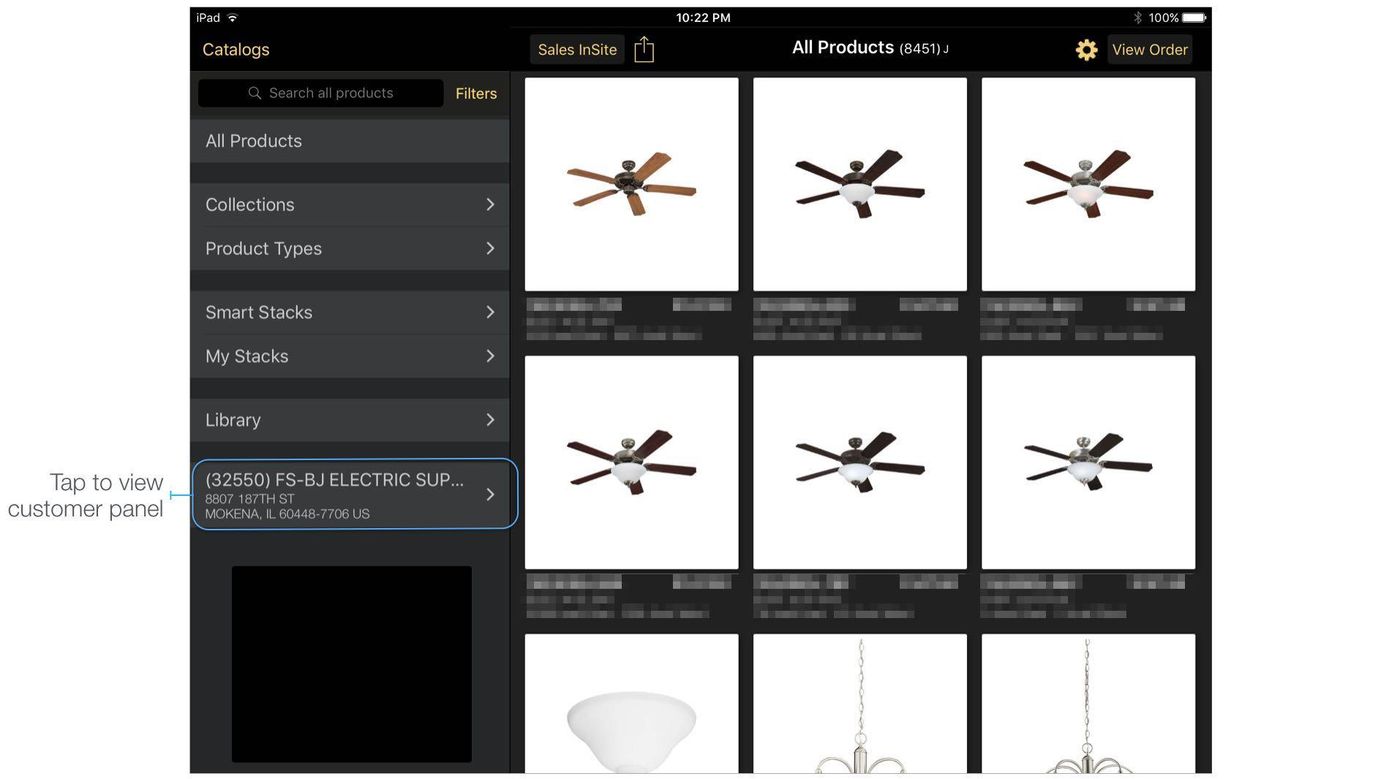
Tap the 'Placements' button in the customer panel to show the dealer showroom inventory 'Placements' view.
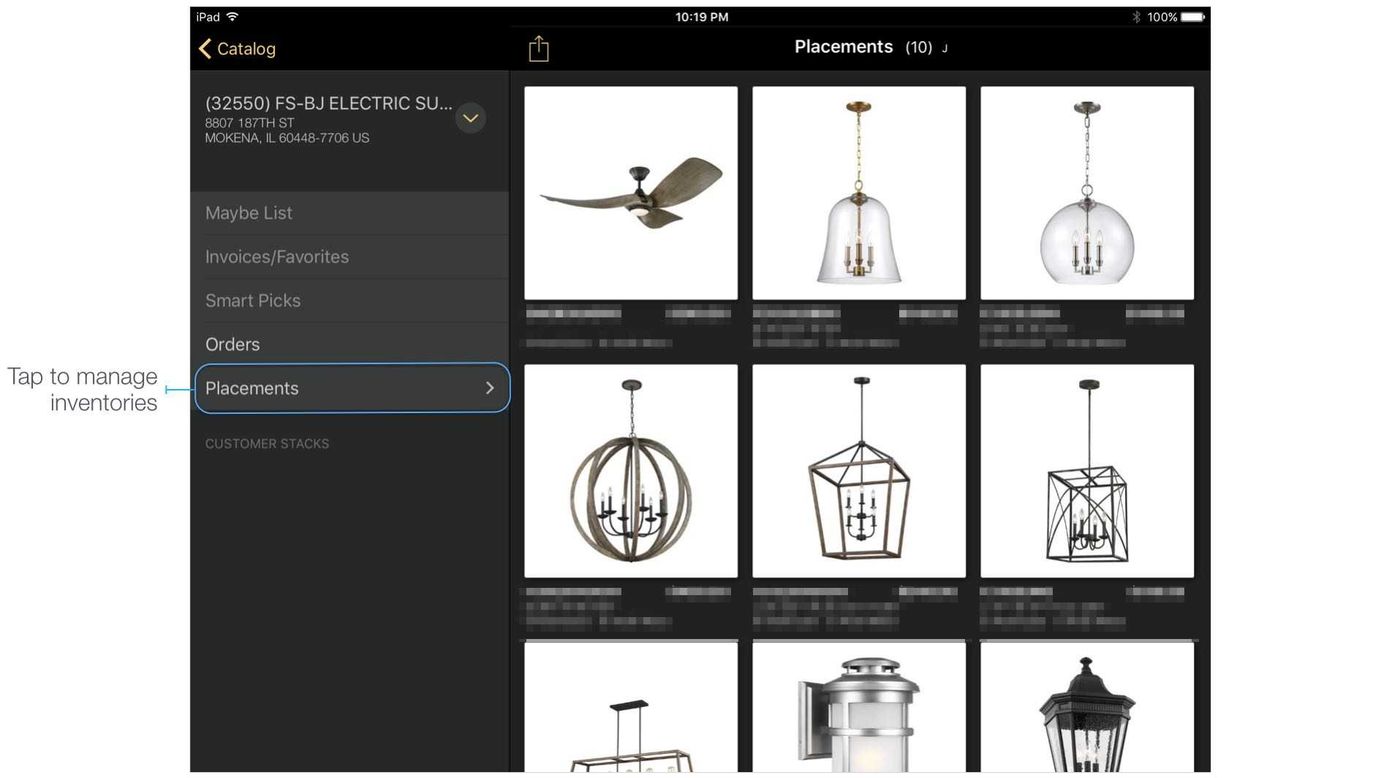
In the placements view, a button displays in the left nav panel for every dealer showroom location that can be inventoried. If the showroom has been inventoried in the past, the date of the most recent inventory is shown on the button under the address.
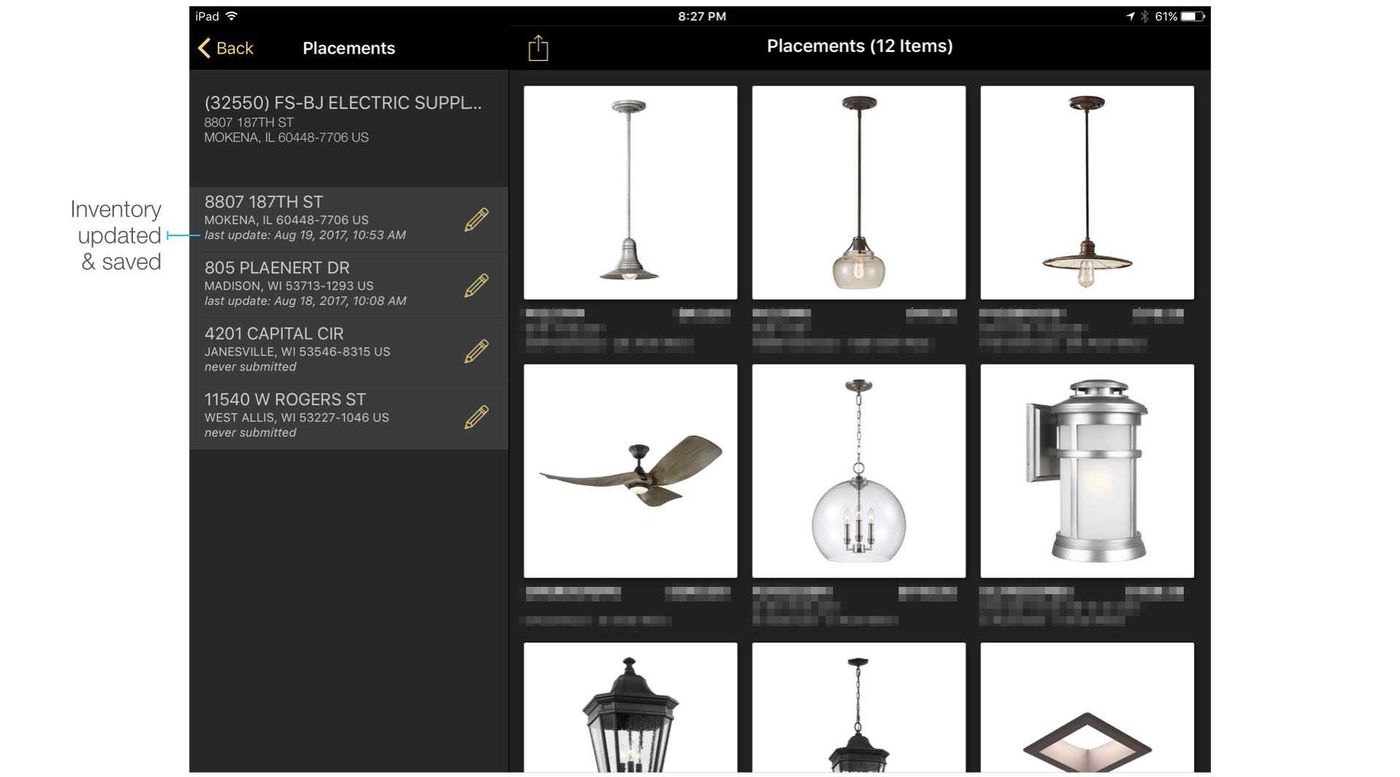
Tap a dealer location button to view the most recently submitted inventory for that location. Note that in-progress inventories that have not yet been submitted will not display here.
Stock availability and other relevant information may be displayed by your company under the photos of the items on display. If your company sends summary sales data to eCat, unit and dollar sales will display under the photo of each item on display, along with with the quantity of the item currently also on order. This information can help you and your customer make good display management decisions.
Tap the 'Actions' icon to email, save to a list, create a PDF catalog, or order items from this view. You can also tap a photo to view product details, browse other items in the same collection, etc.
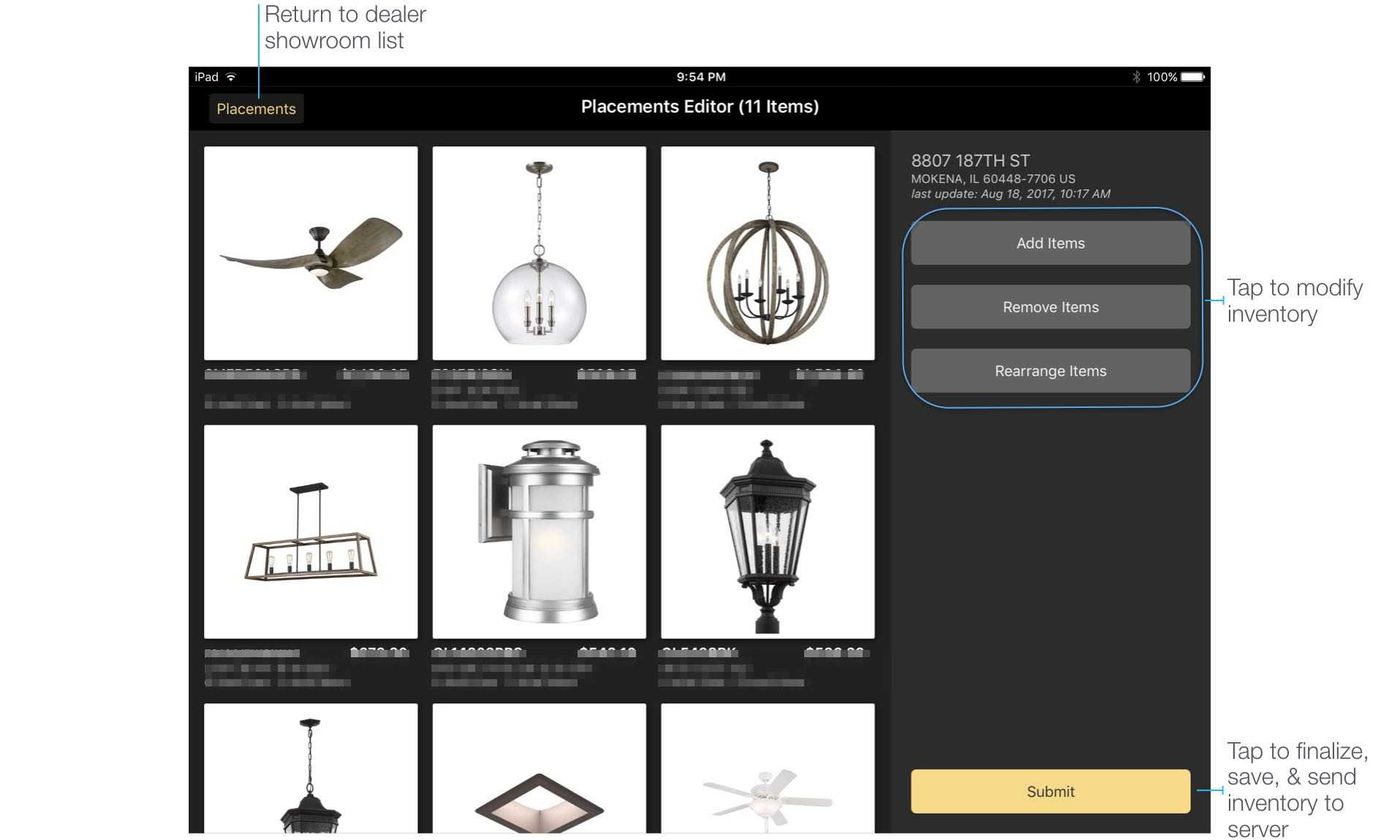
To create or modify an inventory, tap the pencil icon for the desired location. The 'Placement Inventory Editor' will display the items in the most recent inventory along with controls for adding and removing items.
Remove Items from the Inventory
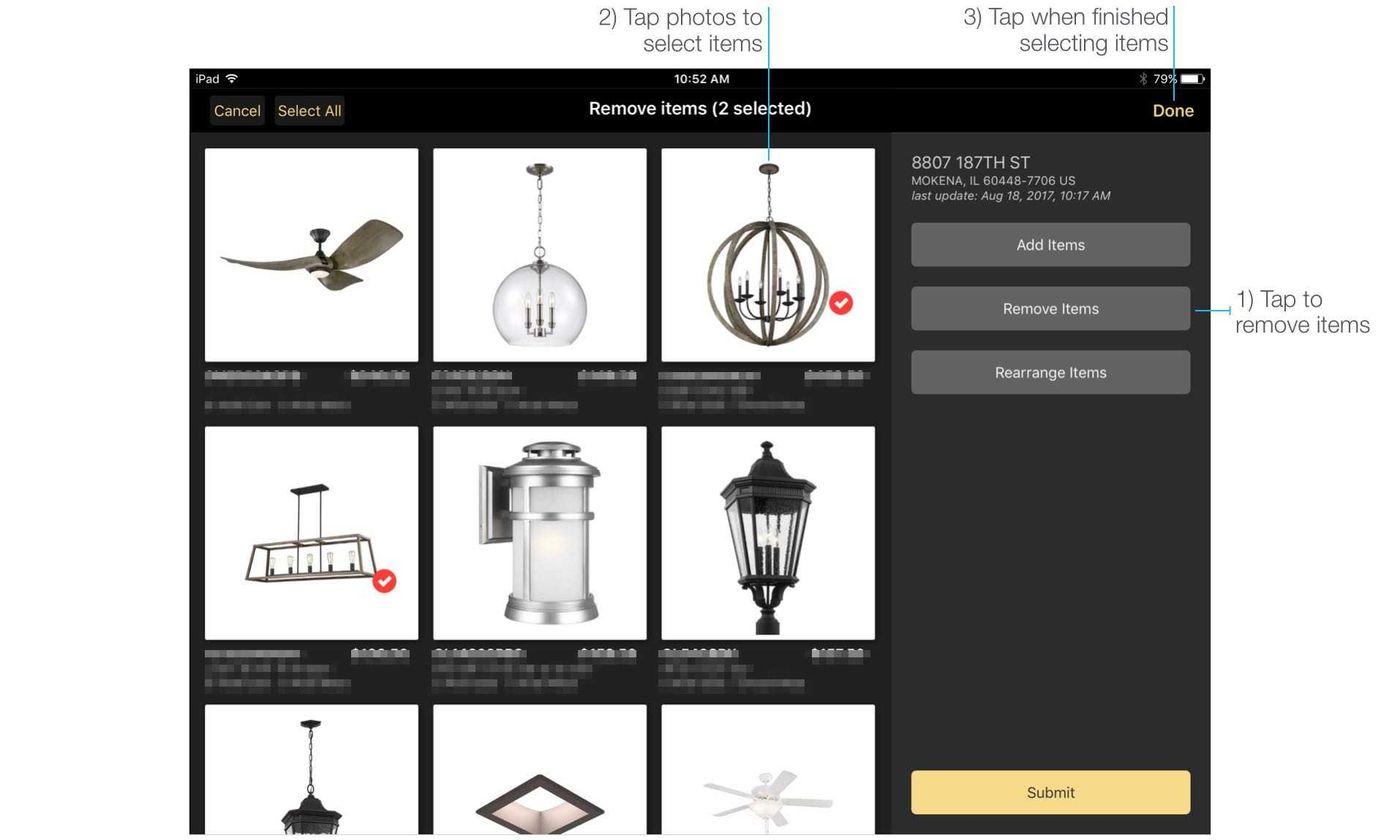
Tap 'Remove Items' to start product selection mode. Tap photos to select items. To quickly select and clear all items tap 'Select All'. When finished, tap 'Done' to remove the items and return to the inventory editor.
Add Items to the Inventory
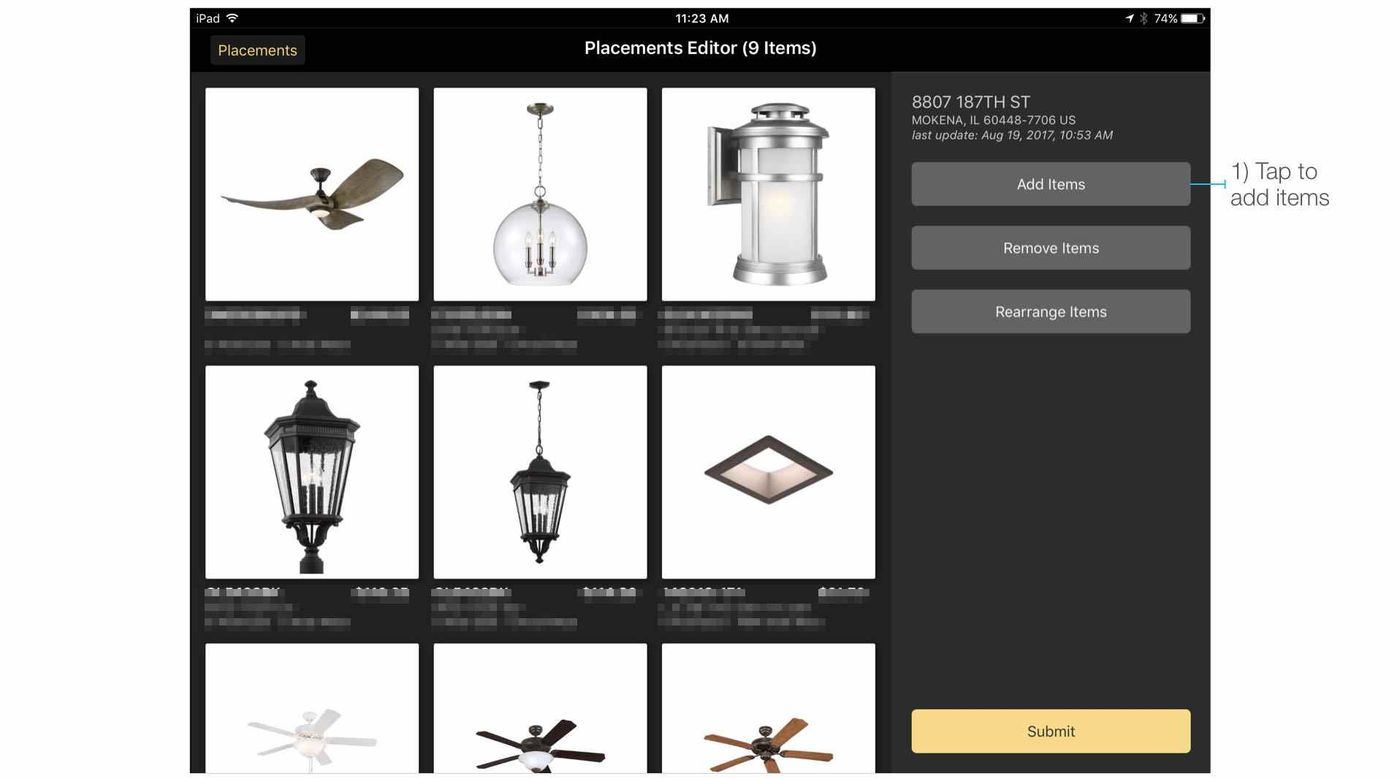
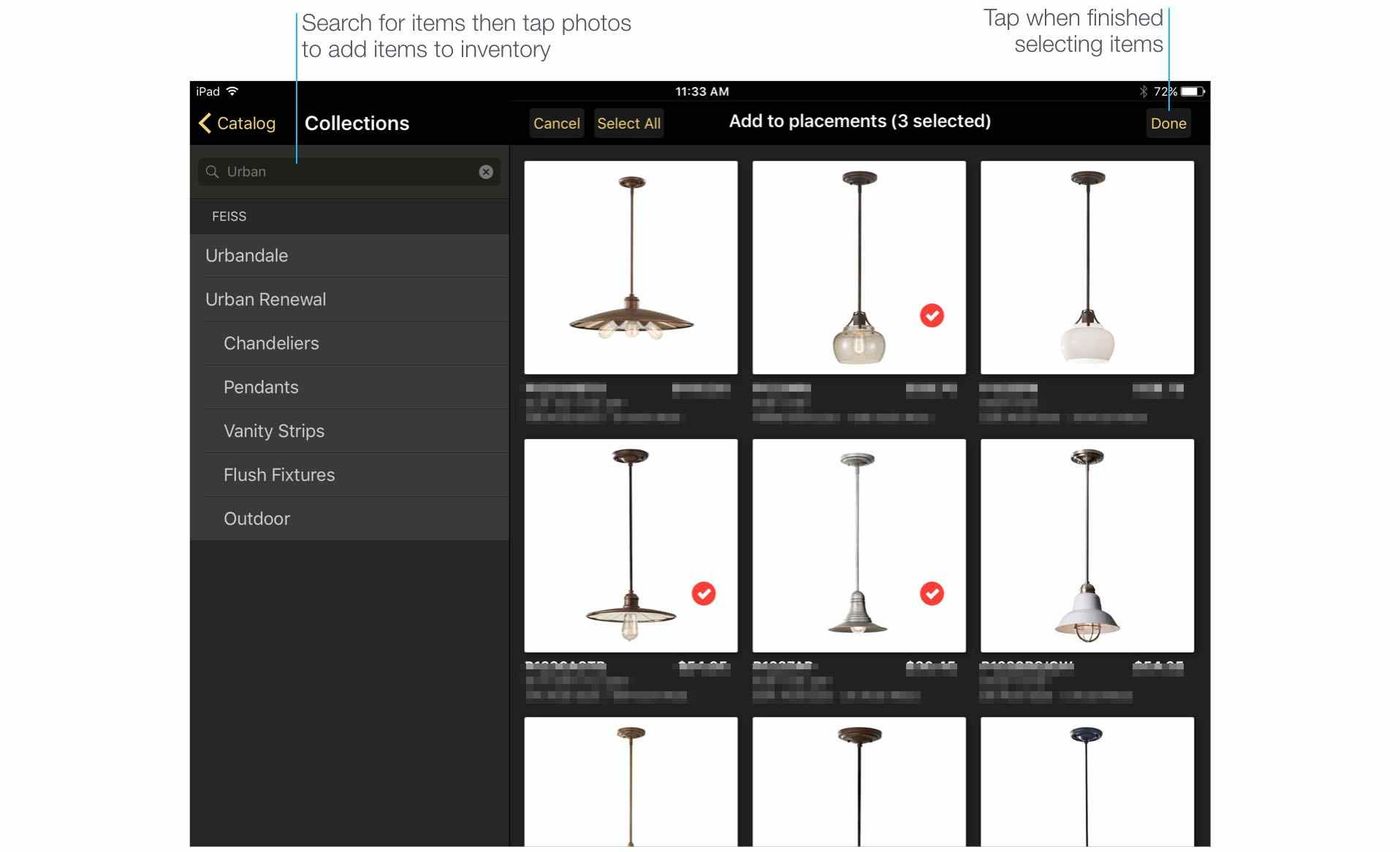
Tap 'Add Items' to start product selection mode. In selection mode, search for items in the catalog, in lists or in another showroom location, then tap photos to add items to the inventory. When finished, tap 'Done' to return to the inventory editor.
Finalize Inventory
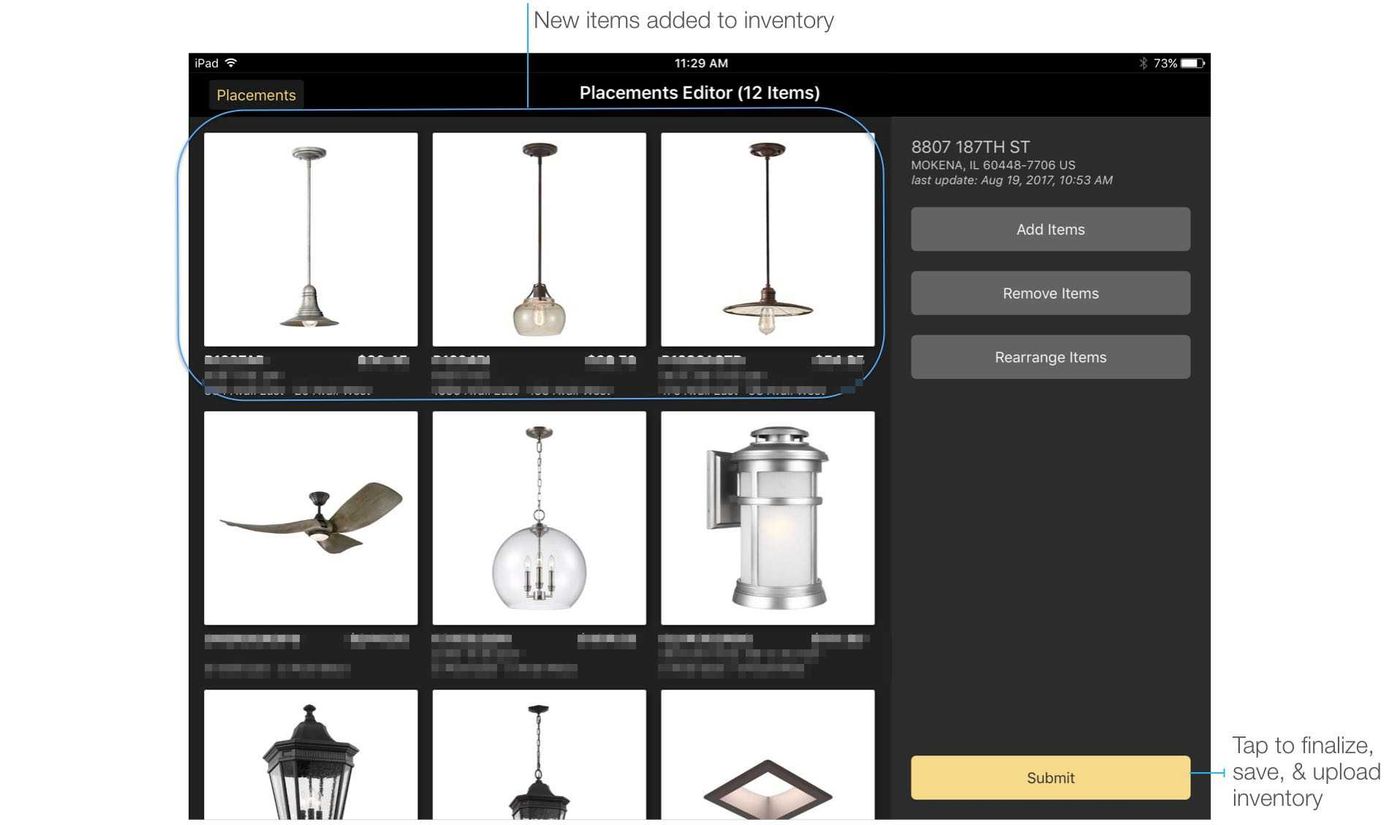
When the inventory is complete, tap 'Submit Inventory' to finalize and send the inventory to the server. The inventory will be saved on the iPad and the date/time stamp will be updated on the appropriate location button.
Tips & Tricks
Copy inventories from saved lists or another dealer showroom location
This useful if you've been saving dealer inventories to customer lists and want to convert to using the display inventory feature, or if a dealer is showing the same items in multiple showrooms.
- Select the location to inventory, then tap 'Add Items'
- View the list or showroom location to copy
- Tap 'Select All'
- Tap 'Done'
View items related to products on display
You may want to show a dealer other items related to those they have on display. Tap the button for the appropriate showroom location, then tap the photo of an item on display to view the Details page for the item. Tap the Collection tab to view other items in the collection. Or tap 'Related Items' to view companion items.
Rearrange Items to group related items
Tap the 'Rearrange Items' button, tap and hold the drag handles on the right side of each row, and items to the desired positions. This is useful for grouping items by display vignette or items that go together.