Overview
The 'Delegated Enrollment' feature enables admins to assign eCat Online enrollment applications to other people in the company for approval or rejection. This helps decentralize and speed up the enrollment approval process.
- ArticleDescription
- View ApplicationsManage Pending Applications for User Enrollment
- Review ApplicationReview application, assign customer & user group
- Delegate ApplicationAssign application to an authorized individual
View Pending Applications
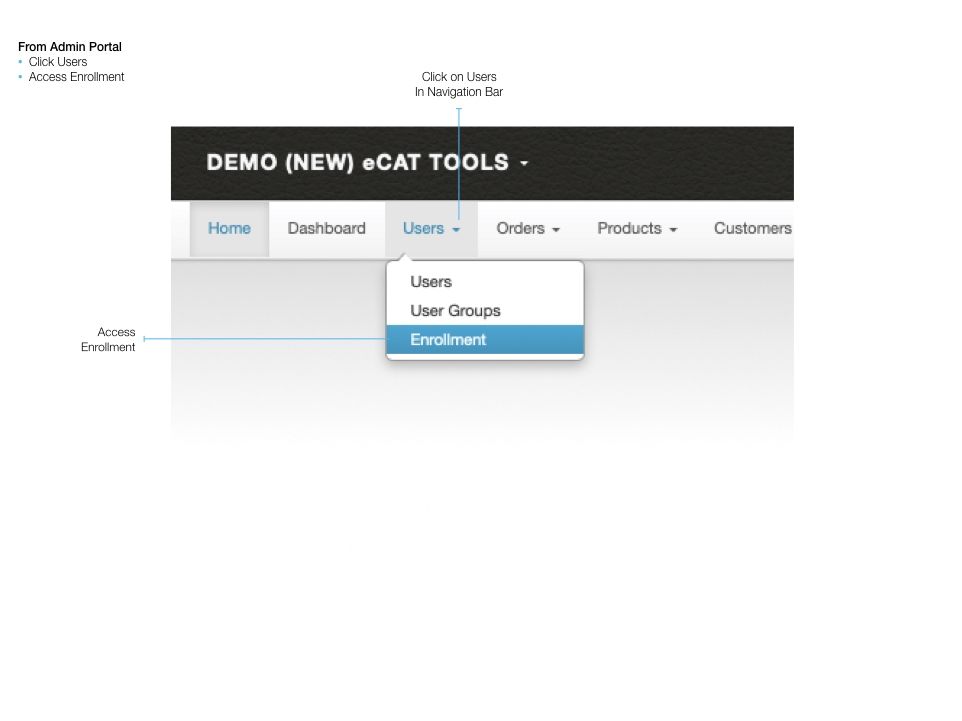
Log in to the eCat Admin Portal. From the the Navigation Bar, click Users then select Enrollment.
On the Enrollment page, view pending Applications and Recent Activity. To select an Application for Delegation, click the Applicant Name.

Review Application
Review the application for accuracy before assigning it to a Delegate. Select or change the Company Type if desired. Change the State field to a two letter abbreviation (E.G. California = CA) if necessary. Select the appropriate Customer and User Group to associate with the applicant.
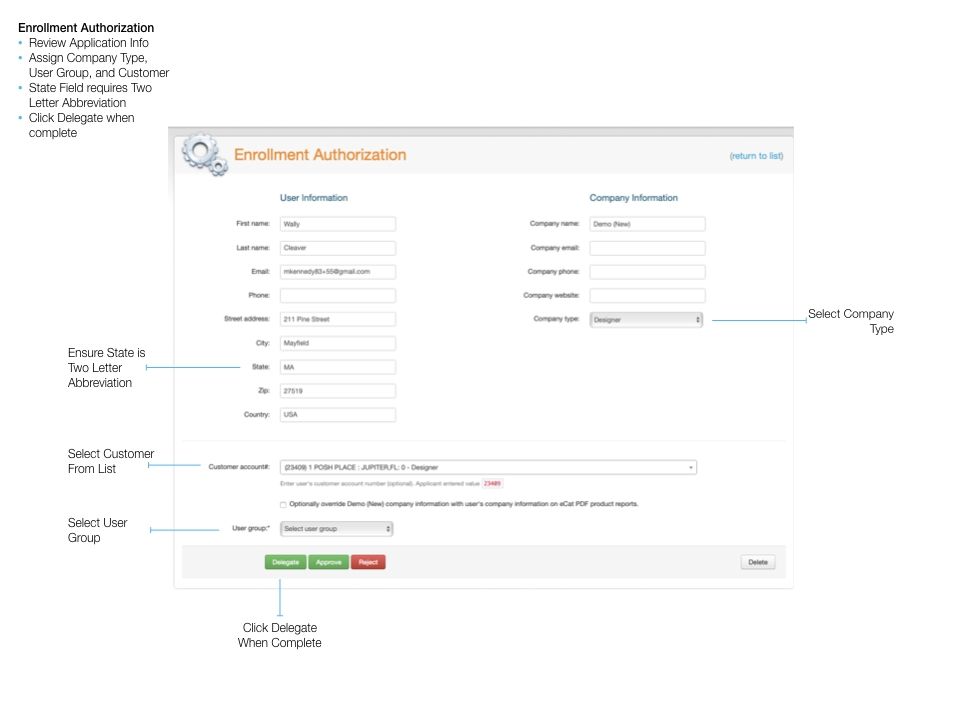
After confirming the application is correct, click the 'Delegate' button. The 'Delegate Enrollment' page will display.
Assign Delegate
The Delegate Enrollment page shows the application information and a list of authorized Delegates that match the state code on the application. Search can be used to find potential delegates not displayed in the list. Click the 'Delegate' button to the right of the desired Delegate to assign the application.

Following delegation, the browser displays the Enrollment Page. The processed Application will now list the selected Delegate as Assignee along with the assignment date. An email will be sent to the Delegate with a link to view and either approve or deny the application.
When the Delegate approves or denies the application, the appropriate email will be sent to the applicant and the information on the Pending Enrollments page will be updated.