Summary
As an admin, you'll field login questions from your users. This guide shows you how to solve the most common login issues quickly without escalating to SuperCat support.
Quick Start: Can't Log In?
When a user reports they can't log in, walk through this 5-step checklist before diving deeper:
- Verify the URL - Are they using the correct login page? (eCat app, eCat Online, or Admin Console)
- Check their username - Usernames are case-sensitive. Confirm they're using the exact username (not their email)
- Try password reset - Have them use the "Forgot Password" link on the login page
- Check account status - Log into the Admin Console and verify their account isn't disabled
- Verify their access - Confirm they're assigned to the correct User Group with appropriate permissions
Most login issues are resolved by steps 2-4. If these don't work, continue to the detailed troubleshooting below.
💡 Tip: Before troubleshooting, ask the user for the exact error message they're seeing. This will help you identify the issue faster.
Top Issues You Can Solve
These are the most common login issues you'll encounter as an admin. You can solve all of these without contacting SuperCat support.
"That Action Is Not Permitted"
What it means: The user is trying to access a feature or organization they don't have permission to use.
Common causes:
- User is trying to access the wrong organization's catalog
- User doesn't have the correct User Group assigned
- User's account is disabled
How to fix it:
- Go to Admin Console > Users > Users
- Search for the user's name or email
- Click Edit on their user record
- Check the "Disabled?" checkbox - if checked, uncheck it and save
- Verify they're assigned to the correct User Group
- If they need access to multiple organizations, ensure all organizations are listed in their profile
Forgotten Password
What it means: User can't remember their password or it's not working.
How to fix it:
- Have the user click "Forgot Password" on the login page
- They'll receive an email with a password reset link (check spam folder if not received within 5 minutes)
- If they don't receive the email, you can manually reset it:Go to Admin Console > Users > UsersFind their user record and click EditClick "Send Password Reset Email"
Note: Password reset emails expire after 24 hours. If the user waited too long, they'll need to request a new reset email.
Account Disabled
What it means: The user's account was intentionally or accidentally disabled.
How to fix it:
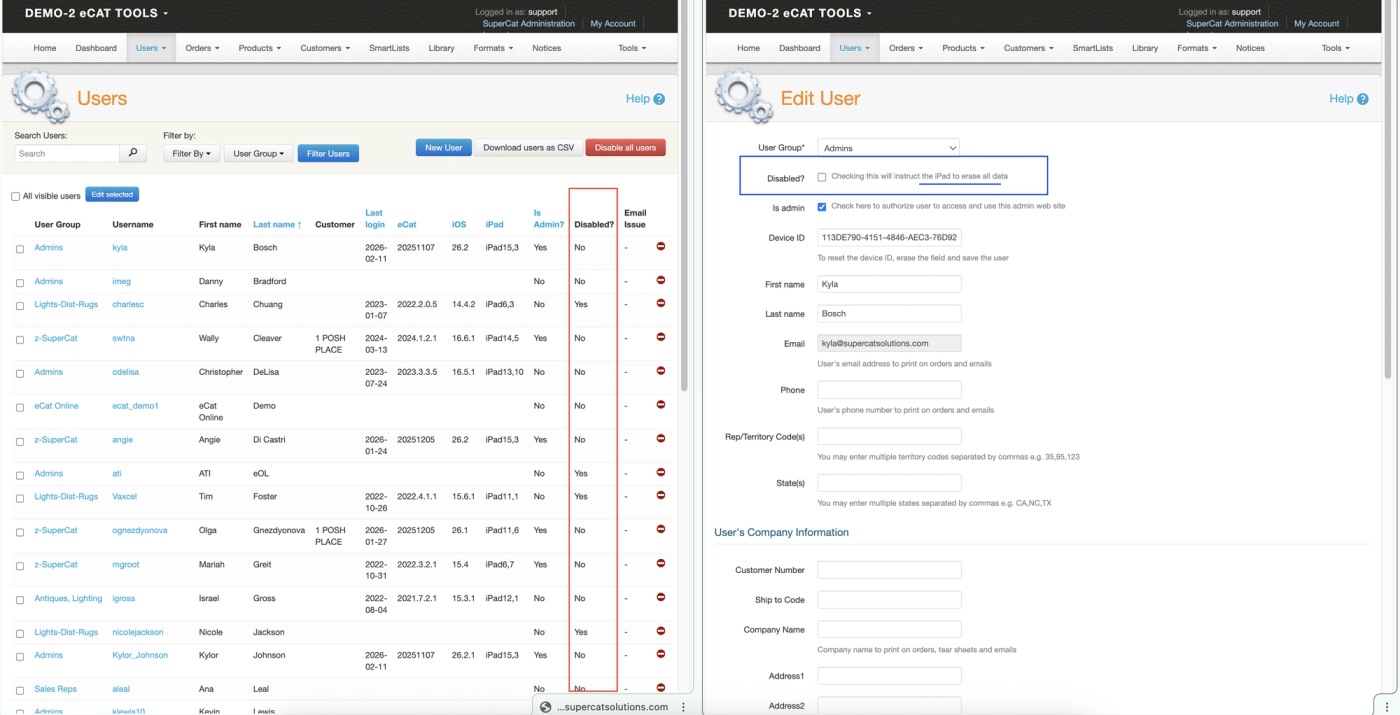
- Go to Admin Console > Users > Users (not the Edit Profile page)
- Search for the user
- Find the "Disabled" checkbox in the user list view
- Uncheck the "Disabled?" checkbox
- Click Save
- Have the user try logging in again
Wrong Organization/URL
What it means: User is trying to log into the wrong company's eCat instance.
How to fix it:
- Verify they're using the correct URL (e.g.,
supercat.supercatsolutions.com/yourcompany) - For eCat Online, ensure they're using the correct web portal URL
- For the eCat app, confirm they selected the correct organization from the list
If the user is a multi-org user (works with multiple manufacturers), they may need to switch organizations within the app.
User Not Enrolled Yet
What it means: The user was invited but hasn't completed their account setup.
How to fix it:
- Check if the user received their invitation email (check spam folder)
- Go to Admin Console > Users > Invitations to check the status of their invitation:If the invitation is still active — click "Resend" to resend the invitation email to the same addressIf the invitation has expired — invitations cannot be resent once expired. Click "Send New Invitation" to issue a fresh one
- Have the user check their email and complete the enrollment process
Note: Enrollment invitation emails cannot be resent once the invitation has expired. If a user's invitation has expired, you must send a new invitation from Admin Console > Users > Invitations.
Admin Quick Actions
Use this reference table to quickly identify where to check and how to fix common login issues:
- IssueWhere to CheckHow to Fix
- Account disabledAdmin Console > Users > Users > Edit UserUncheck "Disabled?" and save
- Forgotten passwordLogin page or Admin Console > Users > UsersUser clicks "Forgot Password" or admin sends reset email
- Wrong User GroupAdmin Console > Users > Users > Edit UserAssign correct User Group and save
- No access to organizationAdmin Console > Users > Enrollment > Pending EnrollmentRe-enroll or reach out to support to assist
- Invitation active but not completedAdmin Console > Users > InvitationsClick "Resend" to resend the invitation email
- Invitation expiredAdmin Console > Users > InvitationsSend a new invitation — expired invitations cannot be resent
- Email not receivedUser's spam folder, SendGrid logsCheck spam, resend email, or contact SuperCat if persistent
- Territory code missingAdmin Console > Users > Users > Edit UserAdd territory code to user profile
- Customer number missingAdmin Console > Users > Users > Edit UserAdd customer number to the user's profile

Preventing Login Issues
The best way to handle login issues is to prevent them. Here are proactive steps you can take:
Before Training New Users
- Verify account setup - Check that all user accounts are created and enabled before training
- Test credentials - Have users log in during the training session to confirm everything works
- Provide clear instructions - Give users a one-page reference with:The correct login URLTheir username (not email)How to reset their passwordWho to contact for help (you!)
After Go-Live
- Monitor usage - Check the Usage Dashboard regularly to see who's logging in and who isn't
- Follow up with inactive users - If someone hasn't logged in after a week, reach out proactively
- Keep user records current - When someone changes roles or leaves the company, update or disable their account promptly
Communication Best Practices
- Send credentials securely - Never send passwords via email. Use the password reset process instead
- Set expectations - Let users know that password reset emails can take up to 5 minutes to arrive
- Create a FAQ - Document your most common login questions and share it with your team
💡 Tip: Create a Slack channel or email alias specifically for eCat questions. This centralizes support requests and makes it easier to track common issues.
Troubleshooting
User says they never received their enrollment email
Solution: Check these in order:
- Have them check their spam/junk folder
- Verify the email address in their user record is correct (Admin Console > Users > Users > Edit User)
- Resend the enrollment email from the Admin Console
- If still not received after 10 minutes, contact SuperCat support—there may be an email delivery issue
User can log into eCat app but not eCat Online (or vice versa)
Solution: These are separate login systems with different requirements:
- eCat app: Requires a User Group with iPad access enabled
- eCat Online: Requires a User Group with Web Portal access enabled and the correct Web Portal URL configured
Check the user's User Group settings in the Admin Console to ensure both are configured if they need access to both platforms.
User's password reset link says "expired" or "invalid"
Solution: Password reset links expire after 24 hours. Have the user request a new password reset email and use it within 24 hours.
User can log in but sees "No items found" or empty catalog
Solution: This isn't a login issue—it's a permissions issue. Check:
- User's User Group has the correct product collections assigned
- User's territory code matches customers in the system (for reps)
- User's customer number is correct (for customers)
See the Managing Users and Permissions article for detailed guidance on access configuration.
Need more help with complex login scenarios?
This primer covers the most common issues. For comprehensive troubleshooting including network issues, eCat iPad app problems, and advanced scenarios, see the full Login Issues: Troubleshooting Guide article.
💡 Tip: Keep a log of unusual login issues and their solutions. This builds your internal knowledge base and helps you solve similar issues faster in the future.
When to Escalate to SuperCat Support
Most login issues can be resolved by admins, but some require SuperCat's help. Escalate to SuperCat support when:
Technical Issues
- Password reset emails aren't being delivered - After checking spam and trying multiple times
- User can't access a specific organization - After verifying their account setup is correct
- Error messages you don't recognize - If the error isn't covered in this guide
- Account appears corrupted - User can log in but sees strange behavior or missing data
Permission or Configuration Issues
- User needs access to a suspended organization - Only SuperCat can reactivate suspended accounts
- Multi-org user issues - Complex scenarios involving multiple manufacturers
How to Escalate Effectively
When contacting SuperCat support, include:
- User's username and email
- Organization name
- Exact error message (screenshot if possible)
- What you've already tried
- When the issue started
This information helps SuperCat resolve the issue faster.
Note: SuperCat support is available via email at support@supercatsolutions.com. Response time is typically within 24 hours during business days.