Overview
Users can email product photos and information from the eCat iPad app and eCat Online web catalogs. The format and content of product emails can be customized to meet your company's needs.
Templates on the Company Settings page are used to set the default product email format for your company. These templates apply to emails sent from both the iPad app and web catalogs.
The company default product email templates can be overridden by user group. This enables customization of the product email format for sales people serving different types of customers, international distributors using other languages, retailers using eCat, etc.
Example email with basic information
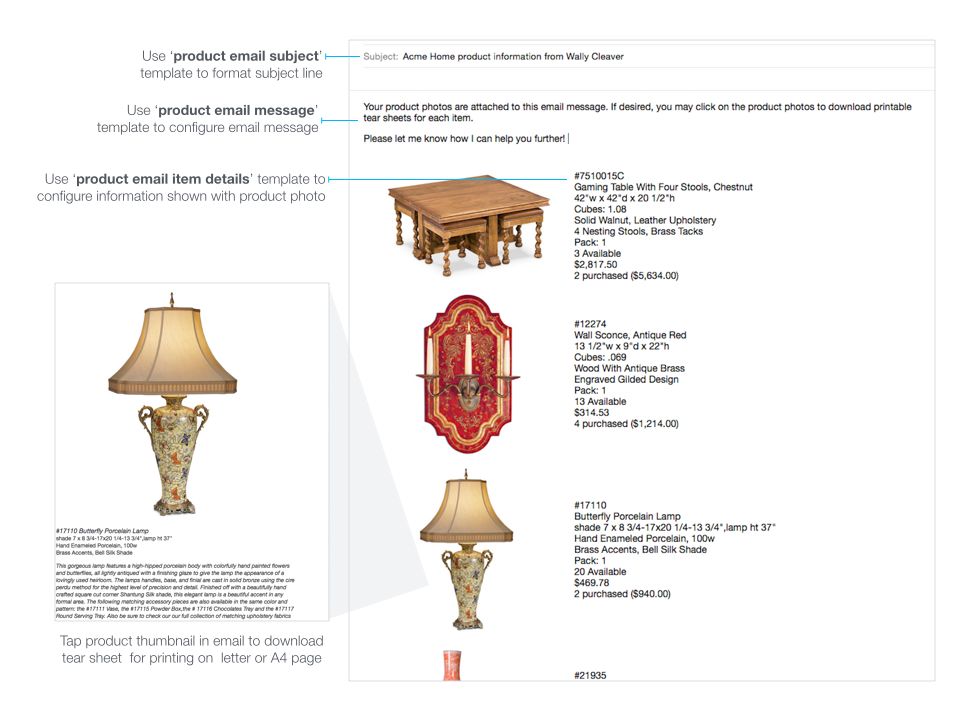
Configuring product emails
Define product emails by setting up three templates.
1) The product email subject template defines the email subject line.
2) The product email message template defines the message body text of the email.
3) The product email item details template defines the information published with the items in the report.
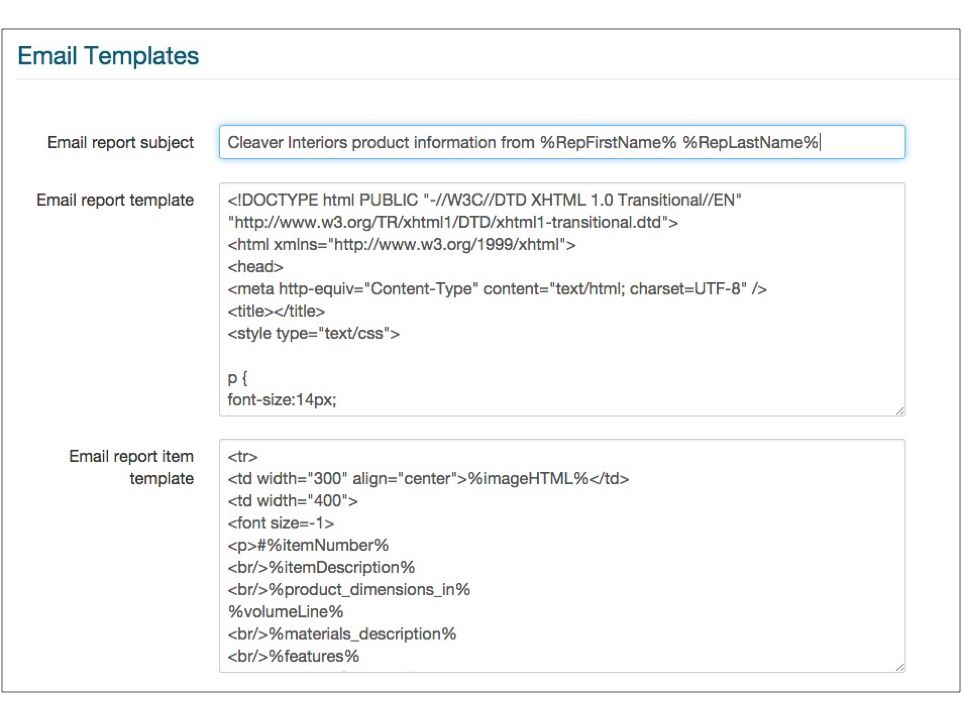
Product email subject
Your company's default product email subject is defined in Company Settings. This can be overridden by user group.
Variables can be used in the subject line. Variables are distinguished from other text by bracketing them with a ‘%’ symbol. For example, the subject line:
Would be templated as:
Product email subject & message template variables
The first six variables below can be used in both product email message and product email subject templates. The 'salesDataDescription' and 'reportTemplateLines' variables can only be used in the message body. Variables are distinguished from other text by bracketing them with a ‘%’ symbol.
- Variable Name Notes
- repNumber First value in user's TerritoryCodes field
- repFirstName
eCat user's first name - repLastName eCat user's last name
- repPhone eCat user's phone #
- repEmail eCat user's email address
- companyName organization name related to eCat catalog
- salesDataDescription (only message body) The optional description provided in the salesdata.csv file. Shows nothing if not populated, or if the user is not viewing a sales data related list when creating email. (Not for use in email subject line)
- reportTemplateLines (only message body) The products included in this email.
- emailBannerUrl (only message body) URL for branding banner uploaded under 'Tools / Import Images / Email Banner'. Width should be 700-750 pixels.
- userMessage If this variable is present, in eCat Online users will be provided the option to add a message along with their email. If they include a message, this variable will be expanded with what they type. Note that this is only supported in eCat Online--not in the eCat iPad app. This is because the eCat iPad app email uses the iOS mail program which already allows the user to type a personal message.
Product email message template
Use the product email message template to define which information should display in your product email and where it should be displayed. All standard HTML tags can be used when templating the email, including color, bold text, and embedded links.
Please note, you must include the %reportTemplateLines% field in your email message template in order for the products to display.
Sample product email message template
Adding a banner to an email message
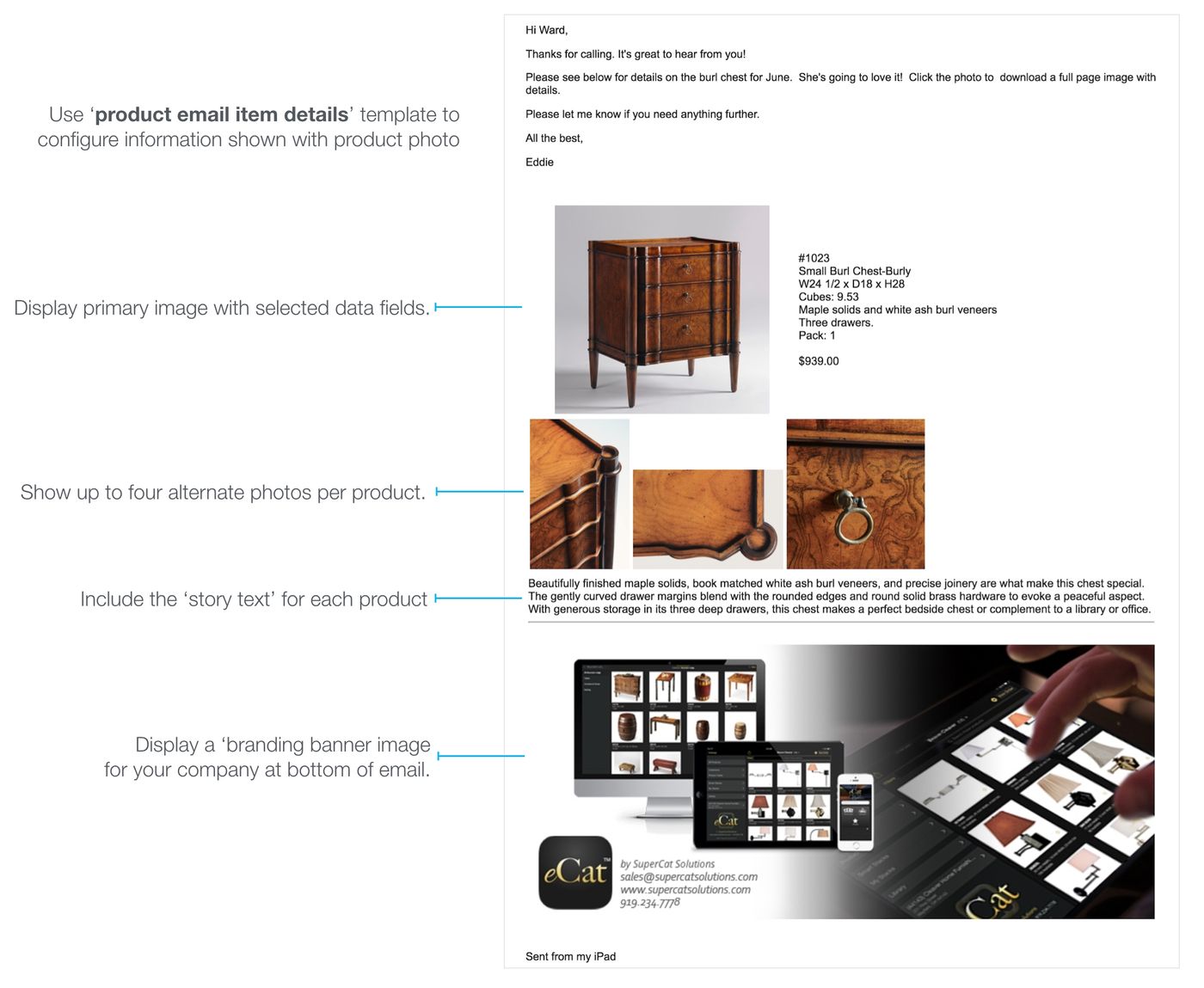
A banner image like the following can be referenced in your HTML email template as a header or footer to show your company branding in emails created by eCat. Upload a 700-750 pixel wide banner image using the admin portal 'Tools / Import Images / Email Banner' page. Then reference the banner in the email message template using the variable %EmailBannerURL% as follows.
Sample email with alt. images, story text, and banner
Product email item template variables
The following variables can be used in the item section of the product email. Bracket variable names with percent '%' symbols when using them in the templates. Note! Product file field names are not case sensitive, but inventory and custom field names are.
- itemNumber
base item code - itemDescription 25 character item description
- longDescription
50 character item description - shortDescription 15 character item description
- materialsDescription 50 character 'materials' description
- features 50 characters 'special features' description
- productDimensionsIn 50 character standard product dimensions field
- volumeLine Product file 'PackedVolume' field, "Cubes"
- upcAndPackQuantity UPC code followed by case pack quantity
- imageUrl URL to the e-mail formatted image for the current product
- imageHTML Displays primary product image. Will be HTML of the following format:
<a href="[URL to spec sheet]"> <img src="[URL to email image URL]" align="center"> </a> - price Item price at the price level selected in eCat, not displayed if prices hidden **NOTE: By design, prices do not display in 'Favorites' and 'Projects' product emails sent from eCat Online.**
- unitsPerCarton case pack quantity
- upcValue UPC number from product file
- minimumOrder minimum order quantity
- newItem "Yes" if a new item, "No" if not.
- shippingWeight Packed single unit shipping weight
- salesDataInfo Displays text like "52 ($1,000.00)" where 52 and $1,000.00 are values provided by the QuantityInvoiced and AmountInvoiced columns. If the user is not viewing a sales data related list, nothing is shown
- availOptionsQty generates an HTML snippet that displays inventory information for each options configuration in current inventory for the product
- story Product story text. The following HTML will display story text the width of the email in a smaller font. This looks best when placed at the bottom of the item template.
Using the sample email report item template below as an example, you can insert the story text like so:
<tr> <td colspan="2"> <font size=-1> %story% </font> </td> </tr> - alternateimageHTML Display alternate images with links to large images. The following HTML will display alternate images the width of the page.
Using the sample email report item template below as an example, you can insert the alternate image HTML like so:
<td colspan="2"> %alternateImageHTML% </td> - c.<CustomFieldName> Custom product file fields can be referenced in the HTML product email item template using the product file field name prefixed by 'c.' These are not case sensitive. Custom fields containing a URL will display a link to the content in the email.
- Note -------> The following inventory fields are case sensitive!
- i.qtyAvailable Quantity of item available, from inventory file
- i.availabilityString Displays label 'Available' if available quantity is greater than zero
- i.qtyInTransit Quantity of item in transit, from inventory file
- i.qtyOnBackorder Quantity of item on backorder, from inventory file
- i.qtyOnHand Quantity of item in stock, from inventory file
- i.qtyOnPOrder Quantity of item on purchase order, from inventory file
- i.qtyOverseas Quantity of item in overseas location, from inventory file
- i.qtyReserved Quantity of item reserved/allocated to orders, from inventory file
- i.qtyInShowroom Quantity of item in showroom, from inventory file
- i.nextScheduledReceiptQty Quantity of item in next delivery from vendor, from inventory file
- i.nextScheduledReceiptDate Scheduled date of next receipt from vendor, from inventory file
Sample 'Product Email Item Template'
Tips and Tricks
Enable personal message from eCat Online emails
In the product email template you can include the <userMessage> template variable to allow the user to type a personal message in product or favorites emails from eCat Online. To enable this feature, simply include the <userMessage> variable in the email template, and eCat Online will include a text box for a personal message whenever a user sends an email from eCat Online. To disable this feature, simply remove <userMessage> from the email template in the Admin Console.