- ArticleDescription
- Quick StartCreate presentations, summary
- CreatingCreate presentations, step-by-step
- EditingChange format, content layout, and image quality
- SharingHow to share your PDF, CSV data & Excel with photos
Overview
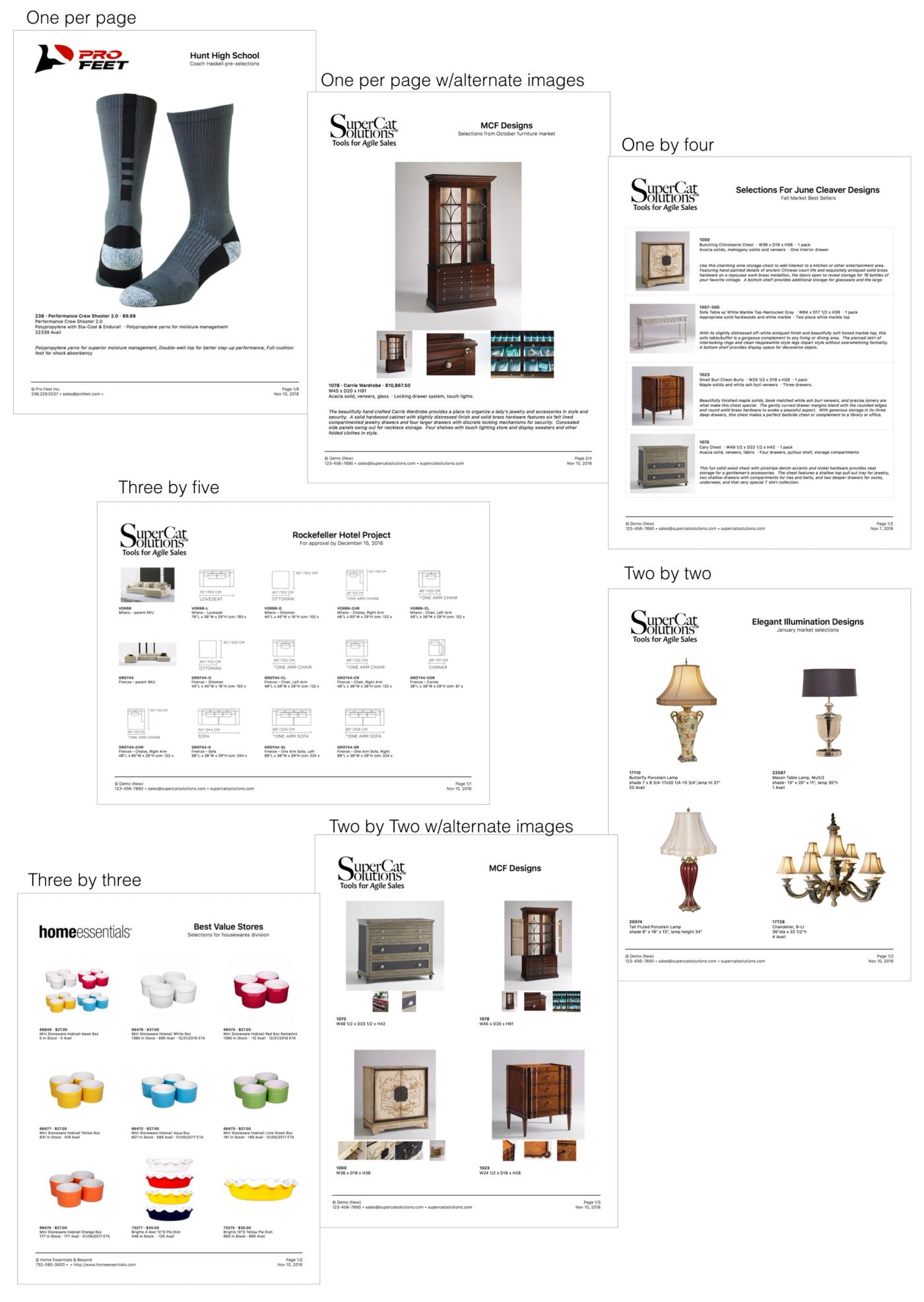
Use eCat to create beautiful PDF presentations for dealers, builders, and designers in different formats, ranging from one to fifteen items per page. Also export product data in Excel format with embedded product photos. Personalize presentations with titles for specific programs or customers. Select specific pricing, or hide pricing altogether. Organize items and page breaks as needed. Presentations can be emailed, printed, saved, shared with file sharing services, or opened in other apps on your iPad.
Your company's eCat administrator can create as many customized presentation layouts as needed, with the information you need to serve customers.
Here are examples of some of the many types of presentations you can create for your customers. Each took less than a minute to create!
Quick Start
Create beautiful customized PDF presentations in just a few steps.
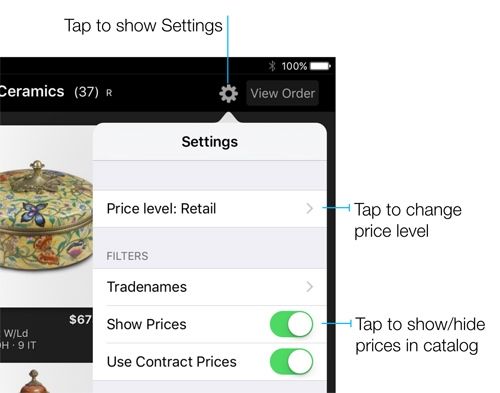
- In Settings (gear), select the price level to show in the presentation, or hide prices
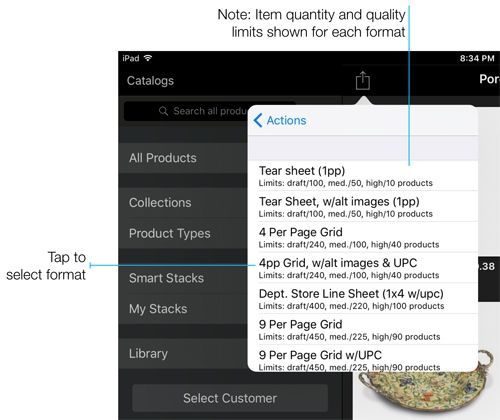
- Select a presentation format from the list to clear the previous presentation and start a new one
- Tap photos to select items to include in the presentation, then tap 'Done' to show the presentation preview
- Personalize the presentation with a title and sub-title
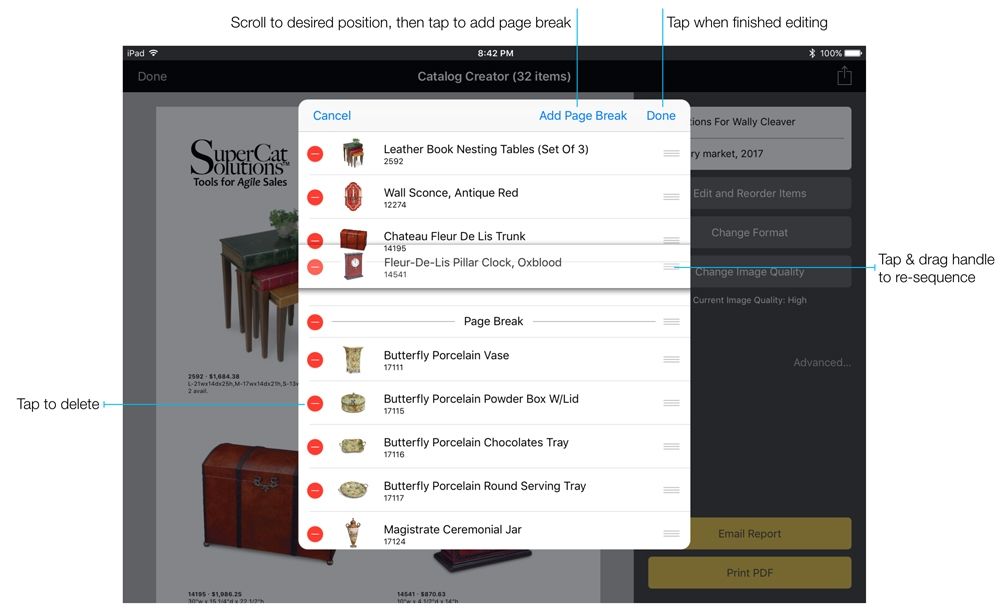
- Tap 'Edit & Reorder' button to edit and rearrange items in the presentation, if desired
- Tap 'Change Format' button to select different formats and see which work best for you
- Tap the Action icon (box with arrow) to share and/or save your presentation
Scroll down for detailed instructions and illustrations.
How To Create PDF Presentations
Set price level
Start presentation
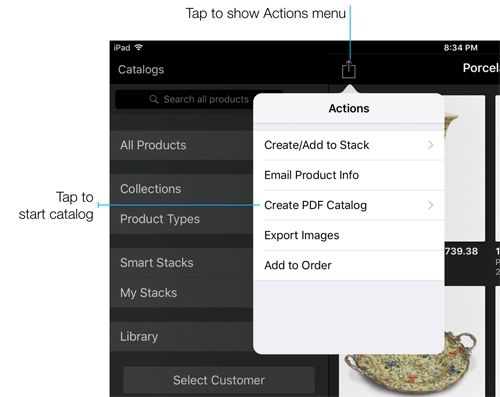
Select format
Select items
Select the items to include in your presentation by tapping images in grid view or using 'Select All' while viewing the desired product selection. Hint: If your presentation contains a large number of items, save them in a list before starting. This will make it easier if you are interrupted and must start over.
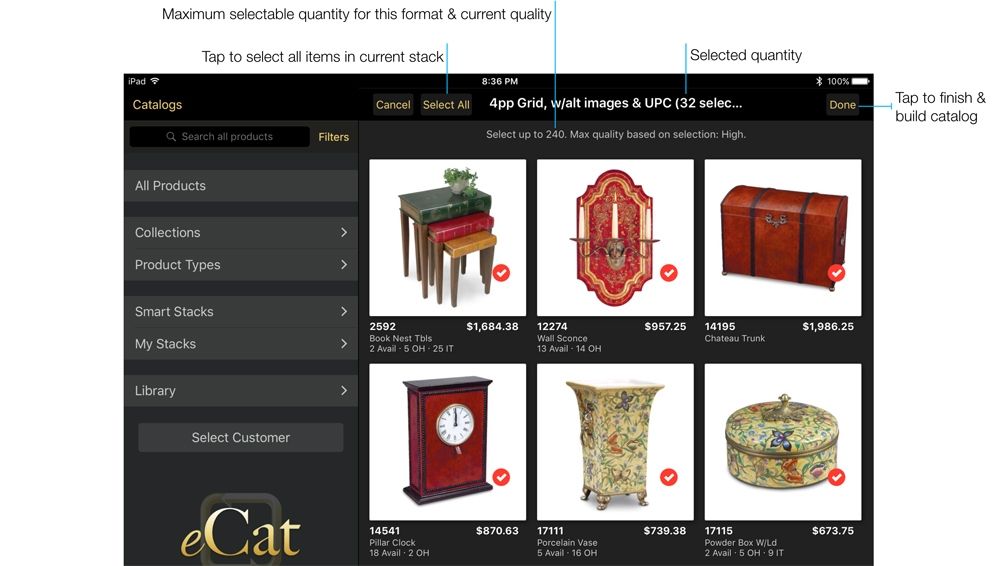
After selecting all items for your presentation, tap 'Done'. eCat will then open the Presentation Creator and display a preview image of your presentation.

Personalize the presentation
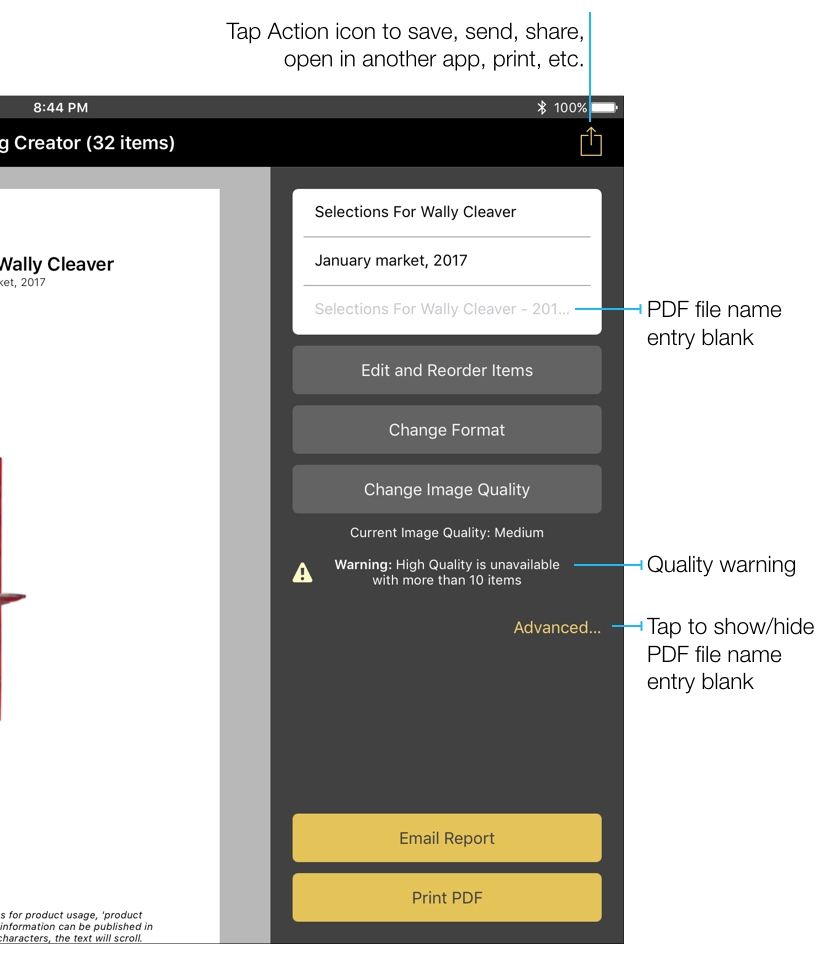
Tap the 'Title' blanks at the top left of the Presentation Creator to reveal the keyboard. Then enter a custom title and sub-title to tailor the presentation to a specific program or customer. By default, the PDF file name will be the presentation title followed by the current date. To change the file name, tap the 'Advanced' button to reveal the file name blank, then specify a different file name.
Edit & reorder items
Tap the 'Edit and Reorder Items' button to remove items from your presentation and change the display sequence. If desired, you can also add page breaks to group similar items on single pages.
Change the Presentation Format
About product image quality
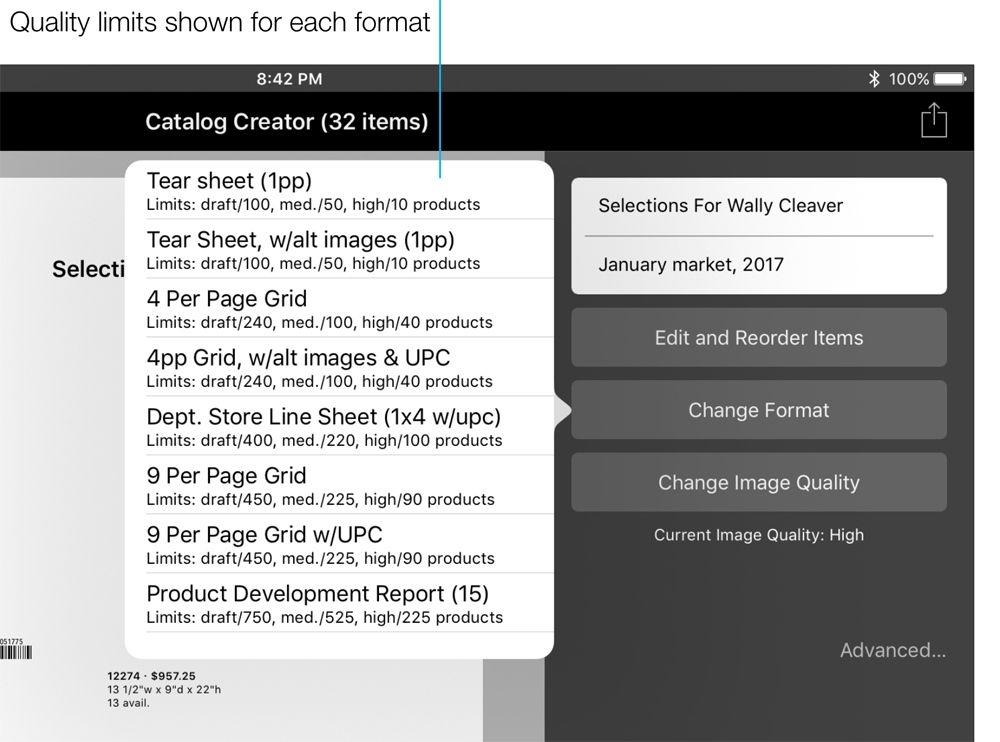
When setting up presentations, eCat automatically adjusts image quality to maintain a reasonable PDF file size and ensure reasonably fast performance. This is done based on the number of products in the presentation and the size of the images in the selected layout. Tap the 'Change Format' button to see what the limits are for the formats made available by your company. The 'Change Image Quality' button can be used to change the image quality for the currently selected format. This is not normally used, but may be useful in cases where you may want to print a draft version PDF in low resolution to save printer ink.
Sharing, Saving, and Exporting
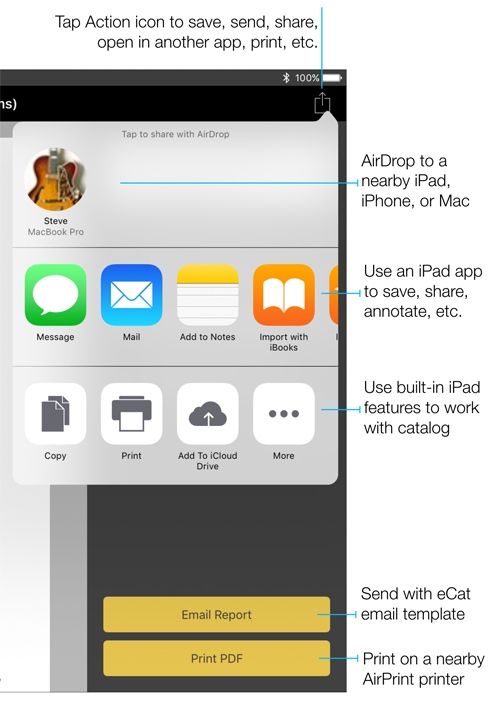
When finished setting up your presentation, use the email and print buttons or or tap the Action icon to generate and share it.
Before closing the Presentation Creator, you can print or share the presentation as many different ways as needed, usually with just one or two taps. For example, you could print a copy, save a copy to iBooks, and email a copy to a client.
How to Export CSV or Excel Format Data
Exporting CSV Format Data
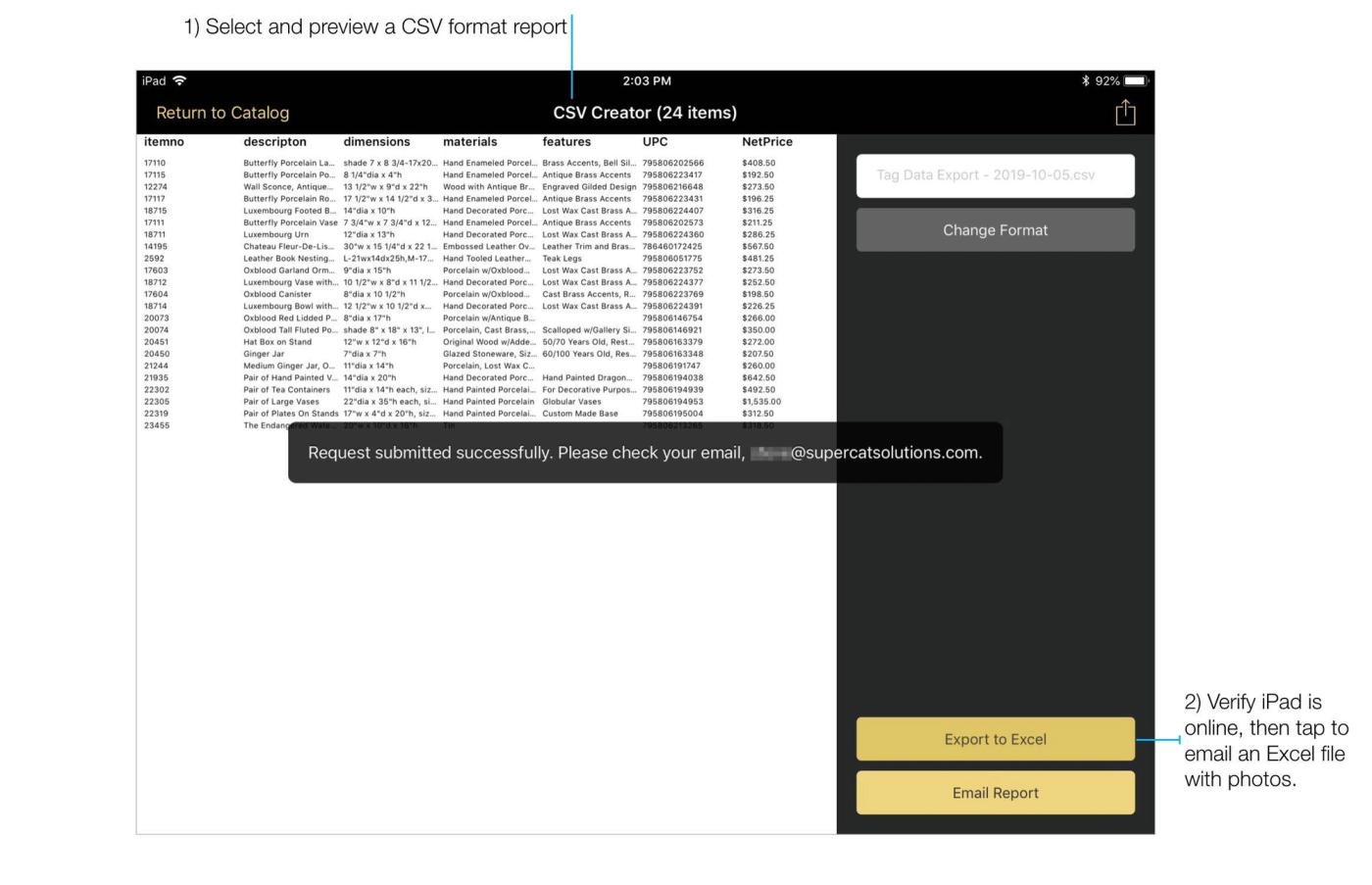
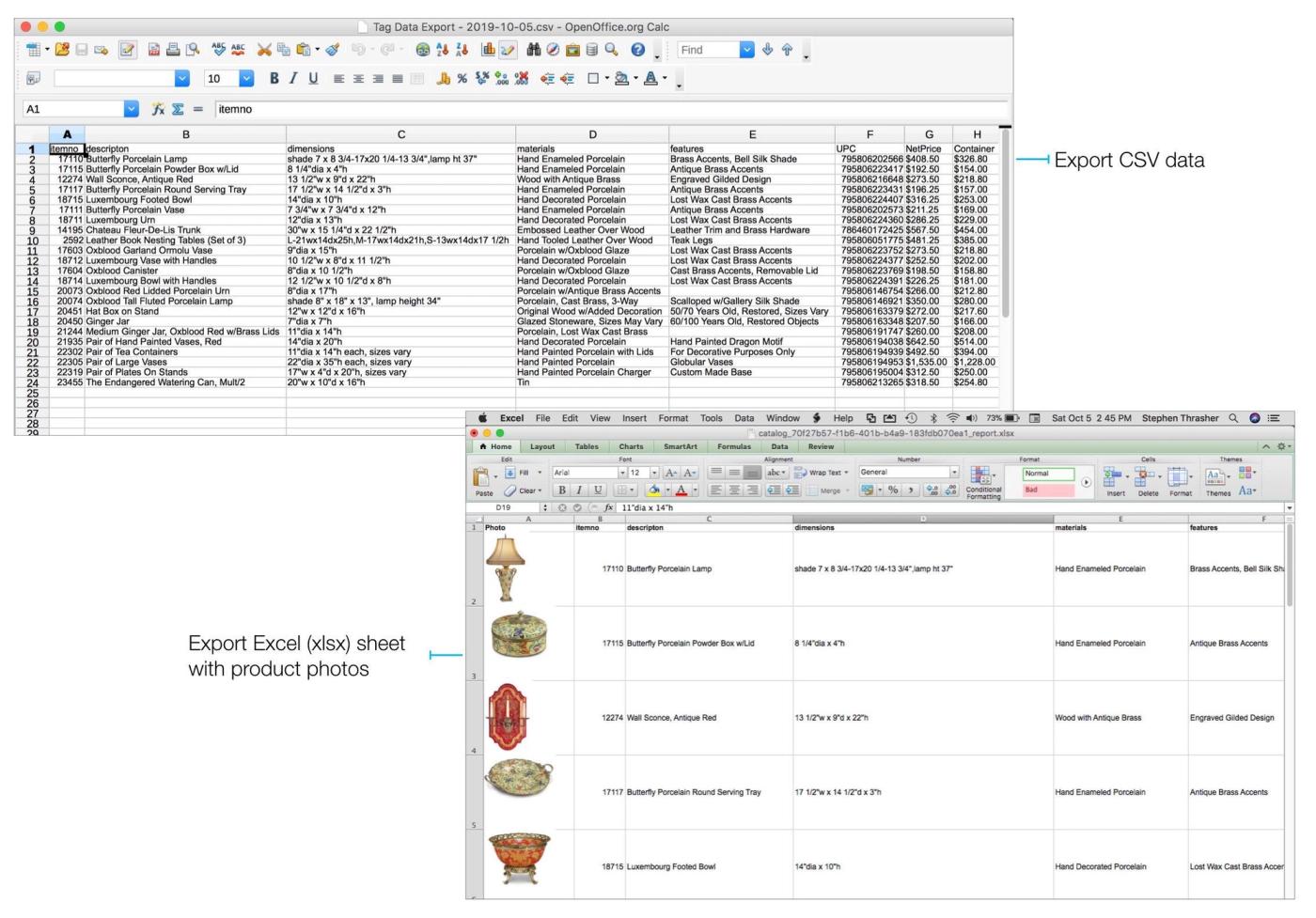
Select a CSV presentation format to export product data without photos. CSV data files can be viewed in spreadsheet programs and imported into databases. They can be useful for merge-printing showroom tags, sending product data to eCommerce partners, sending data from orders and quotes to customers, and a variety of other applications. Your eCat administrator can create as many CSV data export formats as necessary to meet your specific needs.
To export data in CSV format, simply select a CSV format either before or after selecting a set of products in the normal way. The data file will display in preview mode with column headers/field names at the top. Scroll horizontally and vertically to preview the file. Then share it in the same ways as the other presentations.
Exporting Excel (xlsx) Format Data
To export data in Excel format with product photos, create a CSV format report, verify that your iPad is online, then tap the 'Export to Excel' button at the bottom right. Within seconds a link will be emailed to the address associated with your eCat user account. Tap the link to download your Excel spreadsheet.