This knowledge article details how to update eCat in Apple's App Store and how to configure automatic updates. From the iPad, browsers can directly access the eCat Store Page for updates.
- SectionDescription
- Manually UpdateLearn how to quickly refresh eCat to the latest version
- Configure Automatic UpdatesSet up the App Store to automatically update eCat
Manually Update eCat on your iPad
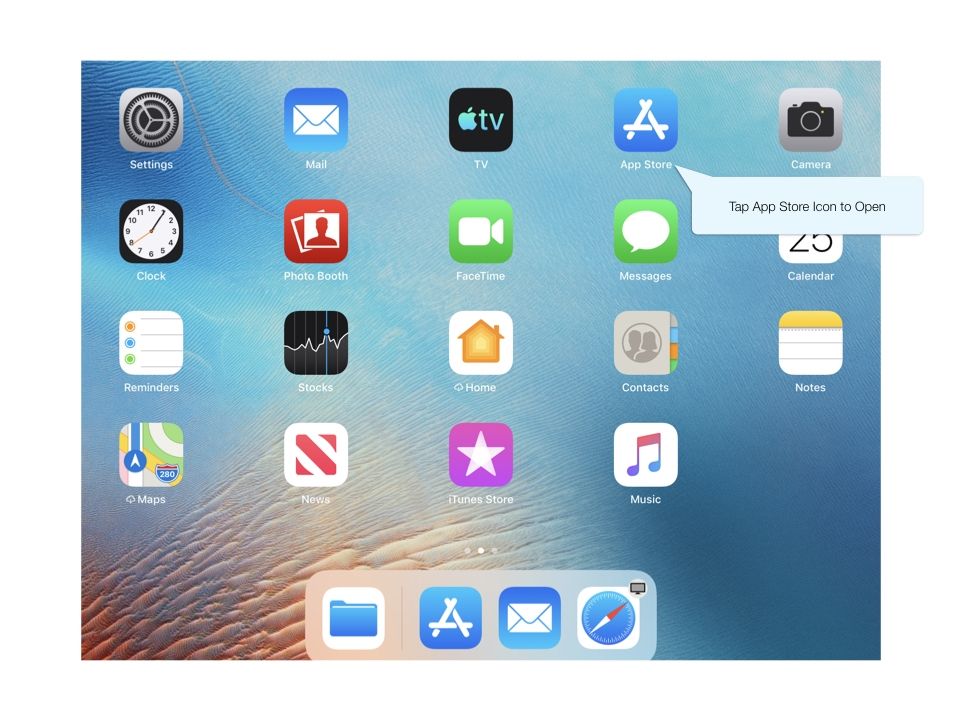
Access the App Store from the iPad Home Screen.
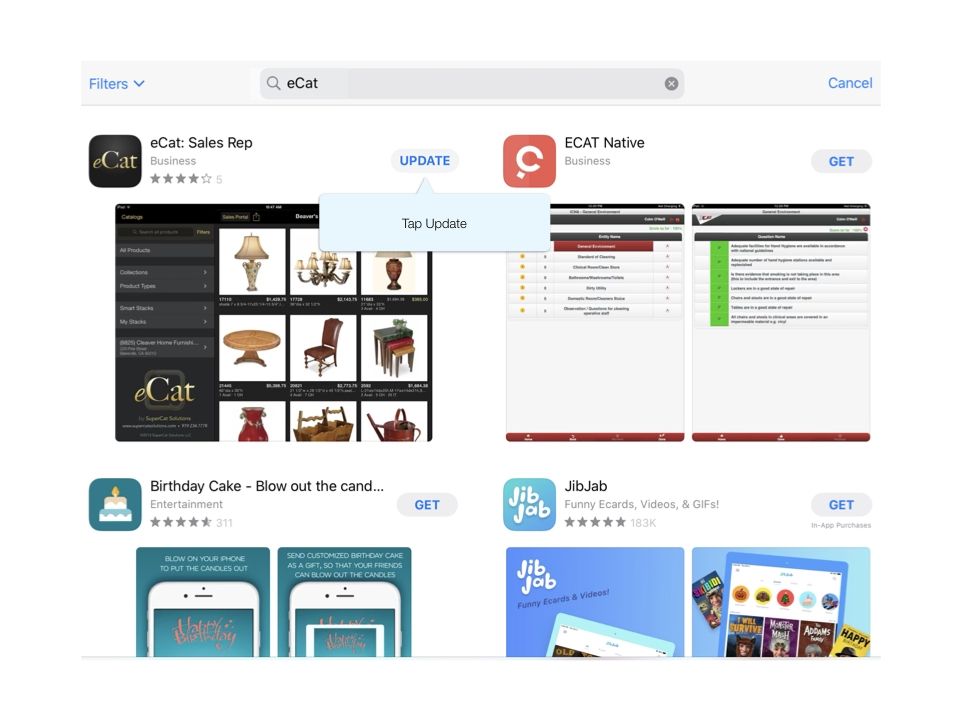
Locate 'Search' along the bottom navigation bar and enter 'eCat'. Tap the 'Update' button beside eCat to begin the download.
Configure App Store to Automatically Update
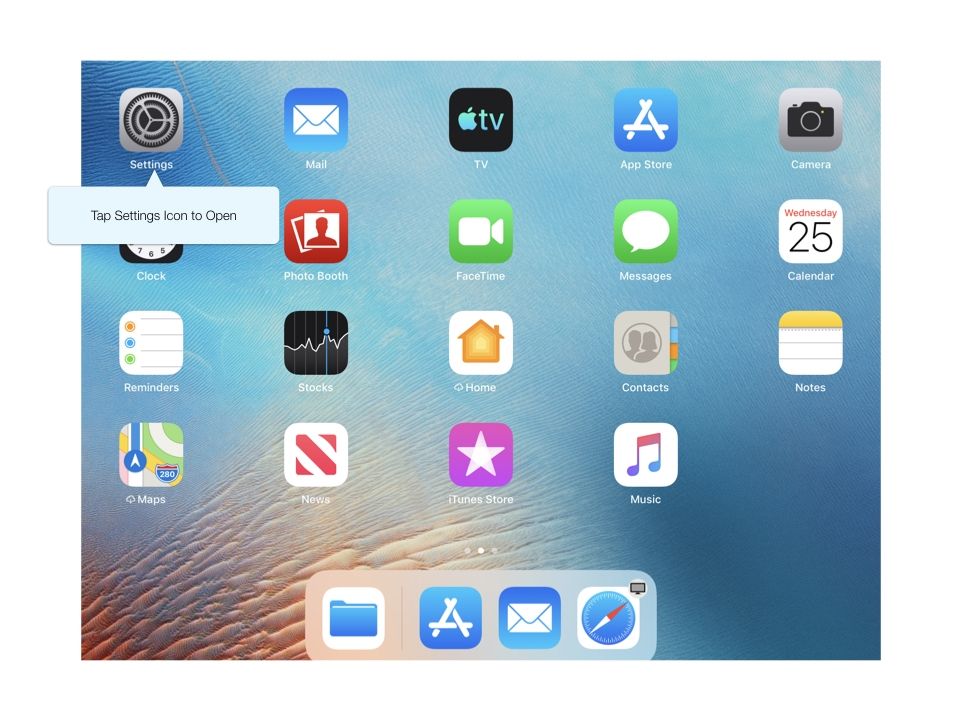
Tap the Settings icon on your iPad's Home Page
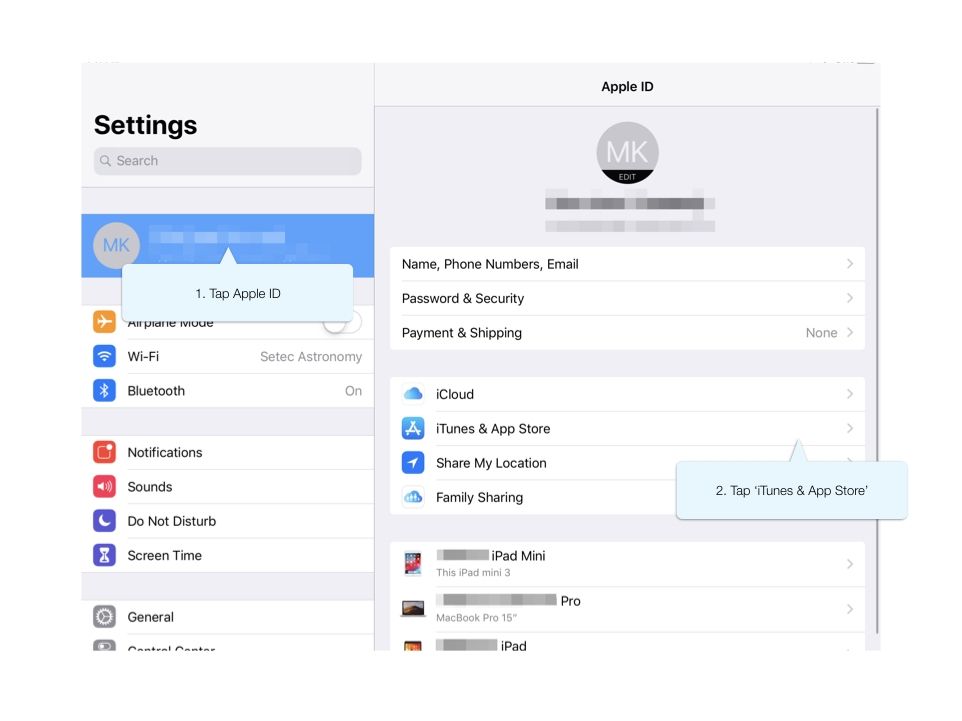
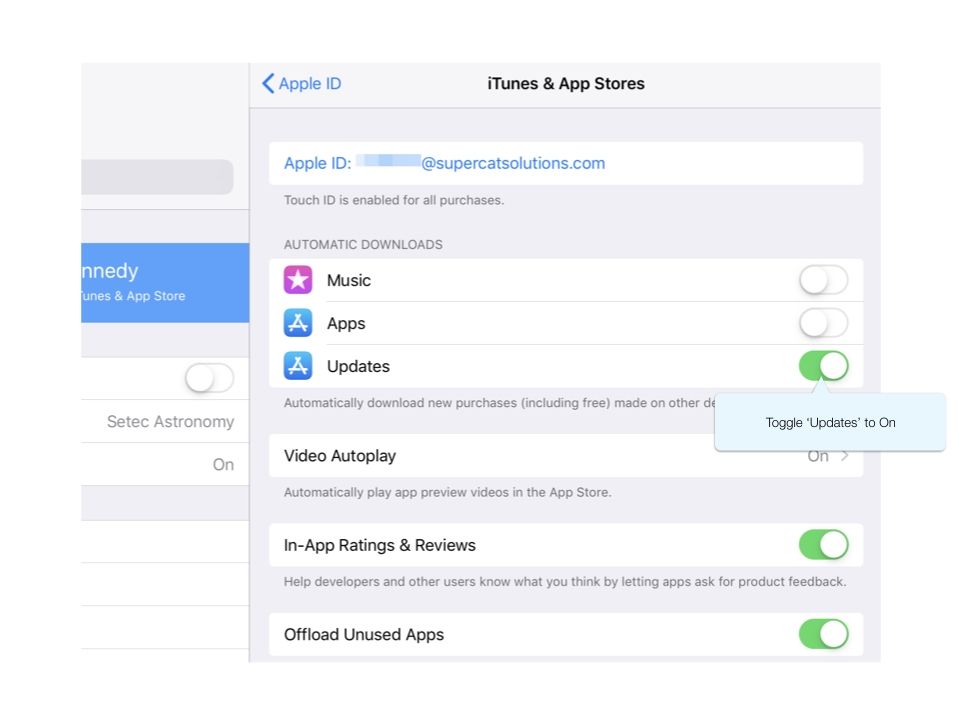
Tap your Apple ID in the upper left. Select 'iTunes & App Store'
Under the section Automatic Downloads, toggle the 'Updates' button so it displays green.
Your App Store will now start the download as updates are released. If you have any difficulty with your update, reach out to support@supercatsolutions.com for assistance.